

Background Location 最后更新时间: 2026年07月02日
The iOS Location SDK supports continuous background location tracking, enabling persistent recording of location information. This feature is ideal for use cases such as route tracking.
Step 1: Import Header Files
Import the AMapFoundationKit.h and AMapLocationKit.h headers in the class where you will use the location features.
Note: For Swift projects, import these headers in your bridging header file.
#import <AMapFoundationKit/AMapFoundationKit.h>

#import <AMapLocationKit/AMapLocationKit.h>
Step 2: Configure Your API Key
You must set a valid API key before calling any SDK methods or initializing any objects.
For Location SDK v2.x
Set the key using the AMapServices singleton:
[AMapServices sharedServices].apiKey = @"Your API Key";For Location SDK v1.x
If you are using v1.x, we strongly recommend updating to the latest version. For v1.x, set the key as follows:
[AMapLocationServices sharedServices].apiKey = @"Your API Key";Step 3: Update Info.plist
Add location usage permission descriptions to your Info.plist file. For detailed configuration instructions, see the [Manual Configuration](/api/ios-location-sdk/guide/create-project/manual-configuration#permissions) guide.
Step 4: Enable Background Location
1. In the Xcode project navigator, select your project.
2. Go to TARGETS > Capabilities.
3. Turn on Background Modes.
4. Check the Location updates checkbox, as shown below:
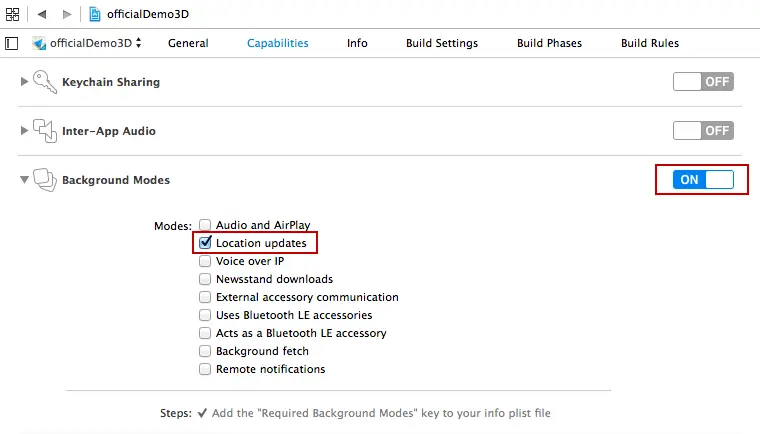
Step 5: Initialize the Location Manager
Create an AMapLocationManager instance and set its delegate.
- (void)viewDidLoad {
    self.locationManager = [[AMapLocationManager alloc] init];
    self.locationManager.delegate = self;
}
Set the Distance Filter
Set the minimum horizontal distance (in meters) that triggers a location update. The SDK only returns a new location result when the device moves at least this distance from the previous location.
self.locationManager.distanceFilter = 200;Enable Reverse Geocoding for Background Location
To receive reverse geocoding information (address descriptions) during continuous background location, configure the following. This feature is supported from SDK v2.2.0 onwards.
Important: Address descriptions are only available within China. They are not returned for locations outside of China.
/**
 * Determines whether reverse geocoding data is returned during background location. Default is NO.
 */
@property (nonatomic, assign) BOOL locatingWithReGeocode;
Step 6: Start Continuous Location
Call the startUpdatingLocation method on your AMapLocationManager instance to begin continuous location updates.
// For iOS versions earlier than iOS 9: disable automatic pausing to prevent the app from being suspended
[self.locationManager setPausesLocationUpdatesAutomatically:NO];

// iOS 9 and later: allows multiple location managers in the same app,
// where some can only locate in the foreground, and others can locate
// in the background, with the option to disable background location at any time.
if ([[[UIDevice currentDevice] systemVersion] floatValue] >= 9) {
    self.locationManager.allowsBackgroundLocationUpdates = YES;
}
// Start continuous location updates
[self.locationManager startUpdatingLocation];
// To receive reverse geocoding data during continuous location updates (supported since V2.2.0),
// add the following settings:
[self.locationManager setLocatingWithReGeocode:YES];
[self.locationManager startUpdatingLocation];Step 7: Handle Location Results
Implement the delegate callback to receive and process location coordinates.
- (void)amapLocationManager:(AMapLocationManager *)manager didUpdateLocation:(CLLocation *)location reGeocode:(AMapLocationReGeocode *)reGeocode
{
    NSLog(@"location:{lat:%f; lon:%f; accuracy:%f}", location.coordinate.latitude, location.coordinate.longitude, location.horizontalAccuracy);
    if (regeocode)
      {
          NSLog(@"reGeocode:%@", regeocode);
      }
}